How to properly create files
Every printed product has its own specific features, but you should always comply with a simple set of rules in order to have a perfect finished product:
File Format
The printable file must be provided in PDF format. If you have different files such as JPG, TIFF, WORD or POWERPOINT you can convert them to PDF using the free online service offered by Adobe and then upload them in the order.
Colour Model
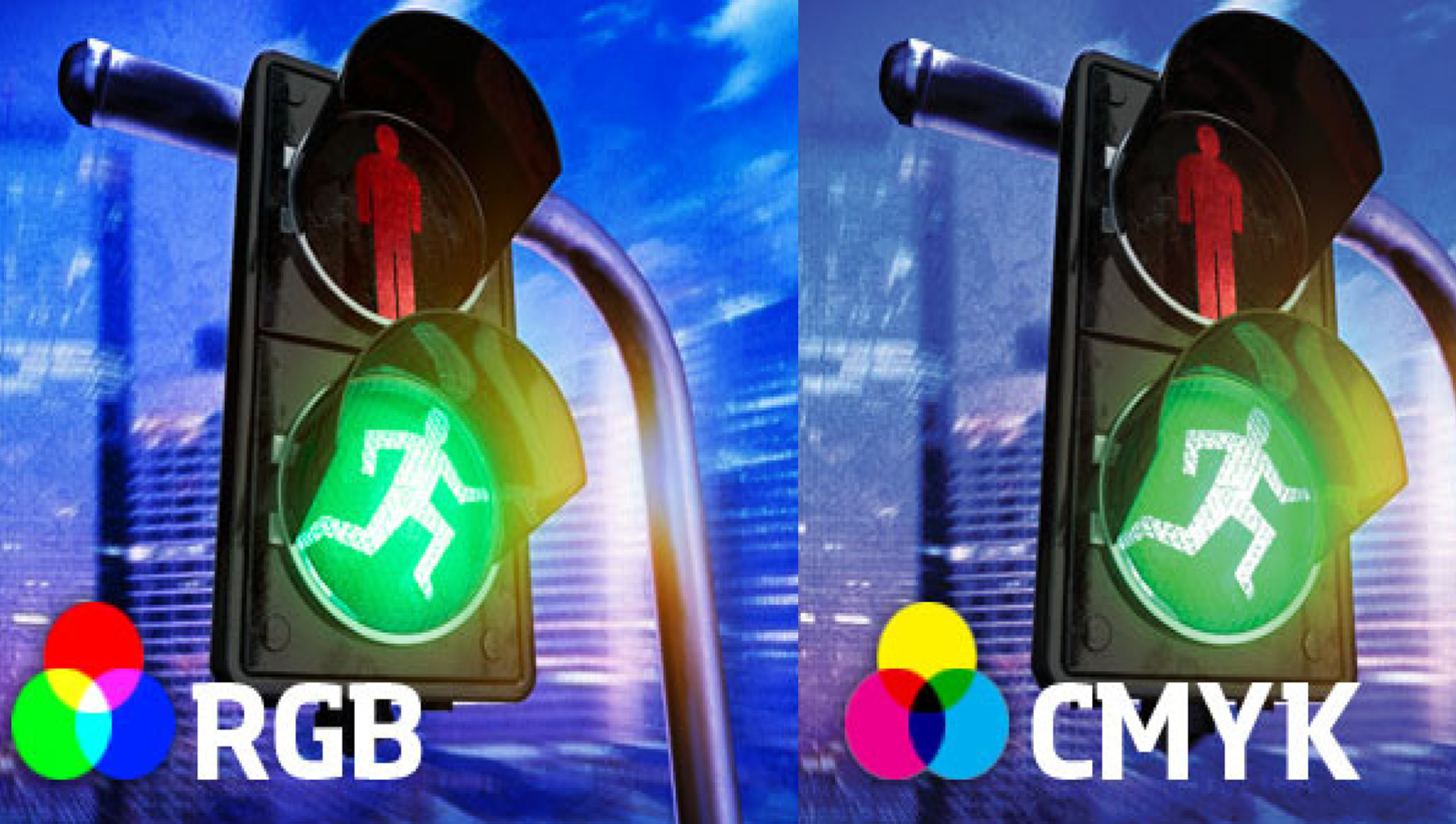
Your layout shall always be in the CMYK colour model and the sum of the colour percentages shall not exceed 275%. Pantone colours shall be converted into CMYK, unless spot-colour print is specifically required.
Resolution
The images you will include in your layout shall have a 300ppi resolution (for 70x100cm or bigger images the resolution can be 150ppi).
The chart below shows the reference sizes (in pixels) to create images with a suitable quality for printing:
| Format | Good quality | High quality |
|---|---|---|
| 8.5x5.5cm | 502x325px | 1004x650px |
| 10x15cm | 591x886px | 1182x1772px |
| 15x21cm | 886x1240px | 1772x2480px |
| 21x29.7cm | 1240x1754px | 2480x3508px |
| 32x44cm | 1890x2598px | 3780x5197px |
| 64x88cm | 3780x5197px | 7559x10394px |
Black in images
| Cyan | Magenta | Yellow | Black | |
|---|---|---|---|---|
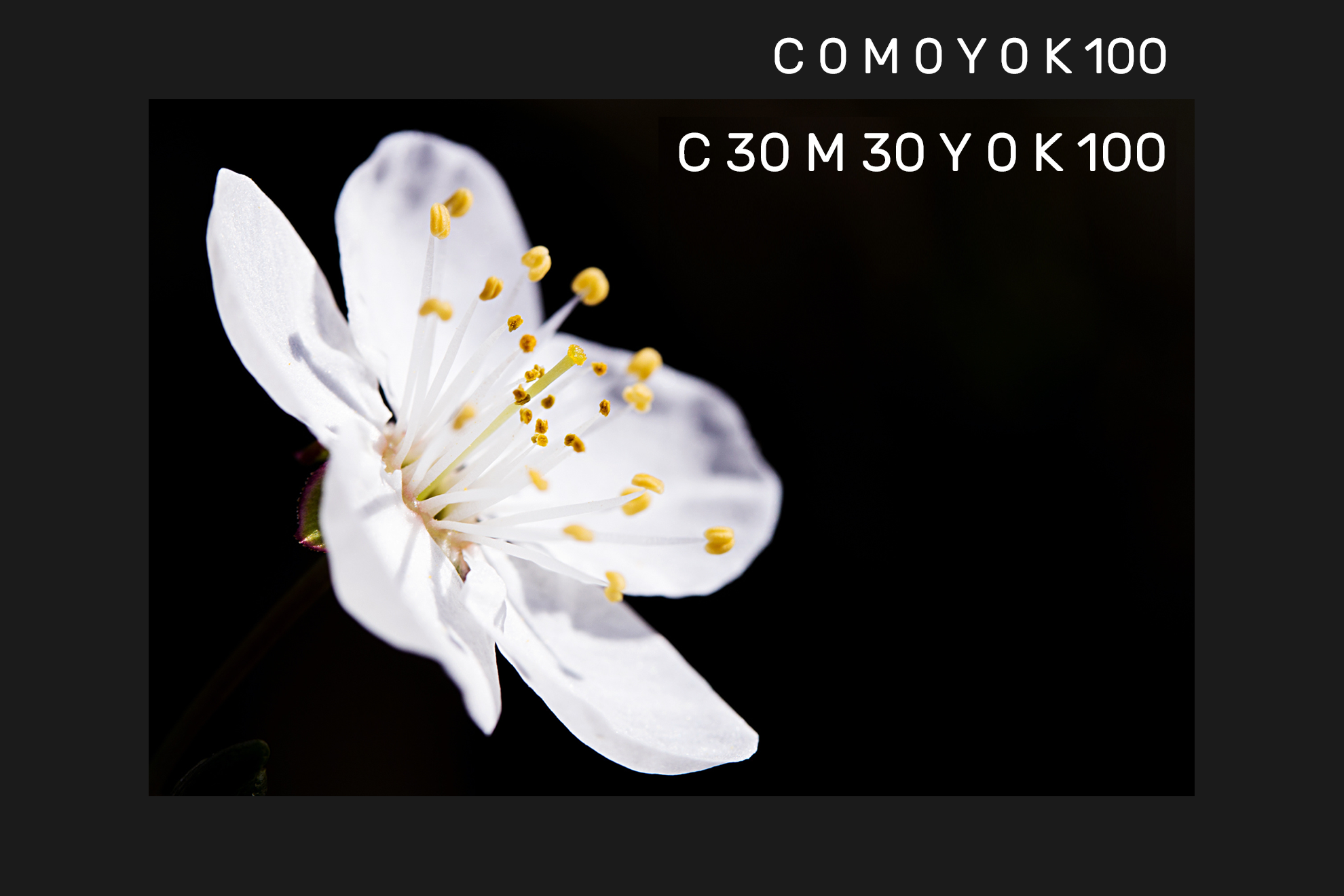
| Completely Black Background | 30% | 30% | 0% | 100% |
Black in texts
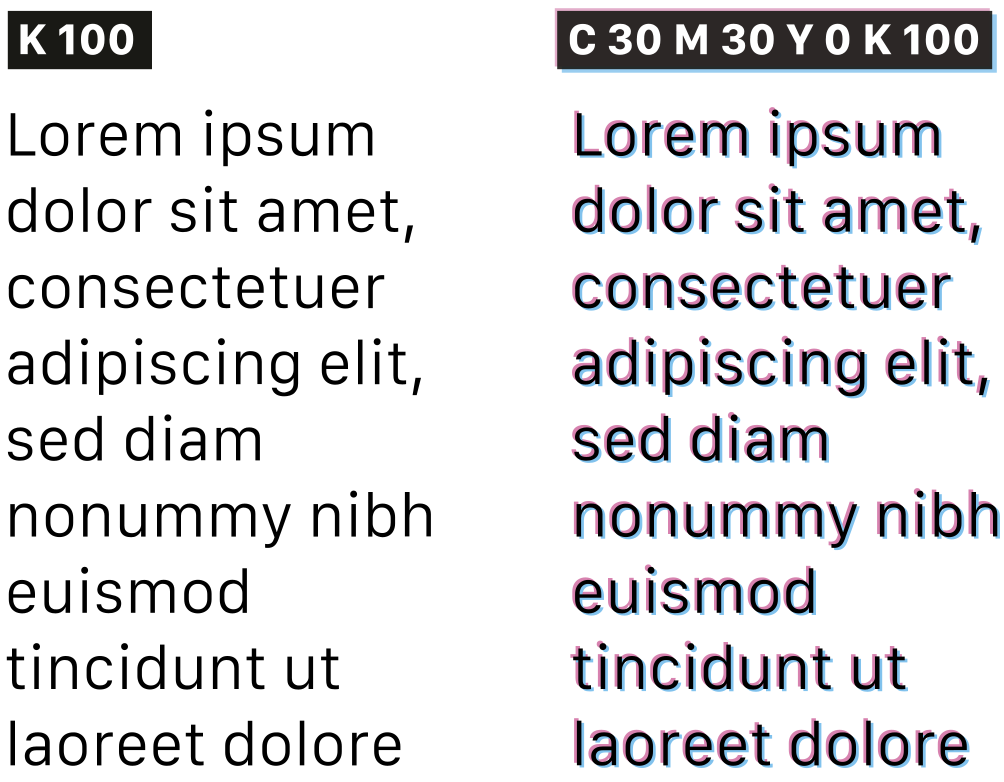
As for texts, it is essential that these are only made up of black K=100% - above all when the font size is less than 20pt.
| Cyan | Magenta | Yellow | Black | |
|---|---|---|---|---|
| Black text | 0% | 0% | 0% | 100% |
FONTS
Fonts shall be embedded or – alternatively – converted into paths. The failure to embed or convert fonts may result in unexpected outcomes during printing, because the characters which cannot be found are replaced.
LAYERS
If you are working on a file with different layers (e.g. Illustrator, InDesign, etc...), it is important to delete all the layers you do not want to be reproduced. Deleting the view may not be enough. We suggest you delete them completely, because - during rendering - some machines’ RIP may make them visible and consequently print them.
INTERNAL SECURITY MARGINS
Always check with our templates the internal security margins. Avoid placing important graphic elements outside them.
COMMENTS OR NOTES
If you're using the function "Comments" or adding "Notes" in the PDF, you must know that these won't be printed. That's because these functions are meant to be used for the exchange of indications and corrections and they're not really included in the print file.
PATH
Do not use strokes that are less than 0.3pt wide on a white background; on a black or coloured background, instead, the minimum is 0.5pt. With the stroke colour we suggest not to go below 50% Black.
EMBEDDED IMAGES
All the images used in the layout shall be embedded in the document. This applies especially to Adobe Illustrator® Read Adobe’s User Guide on how to embed images. If you do not manage to do it yourself, please attach a .zip folder containing the images used to the order.
Transparency
In most cases opacity and blend mode are correctly read by modern RIPs for printing, but it can rarely happen that these are differently reproduced compared with what we see on screen. To avoid any surprise, our suggestion is to melt elements that interact between themselves in a single object (images, texts or vectors) through blend mode's methods as multiply, overlay, etc. This way we'll avoid unpleasant surprises after printing.
OVERPRINT
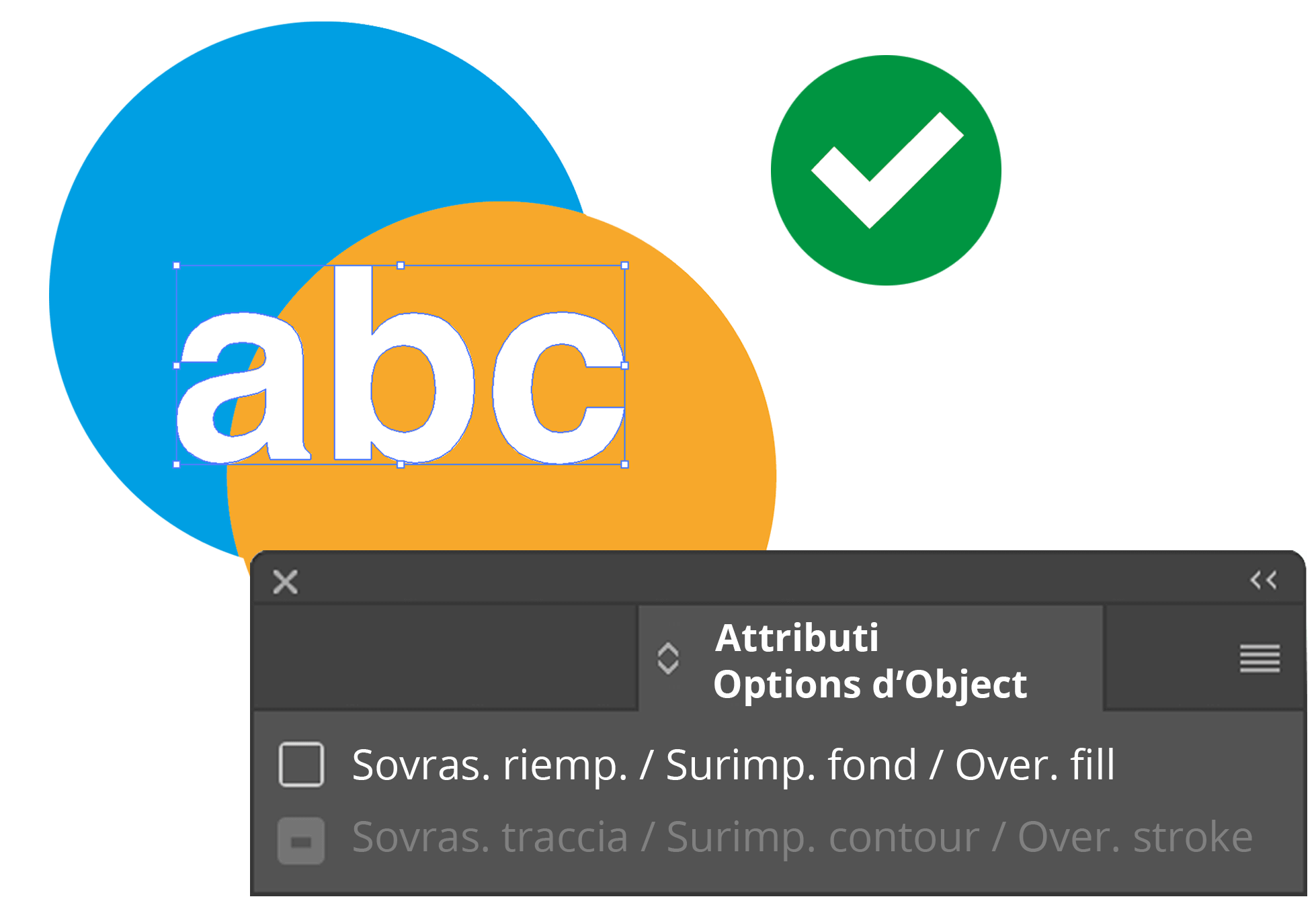
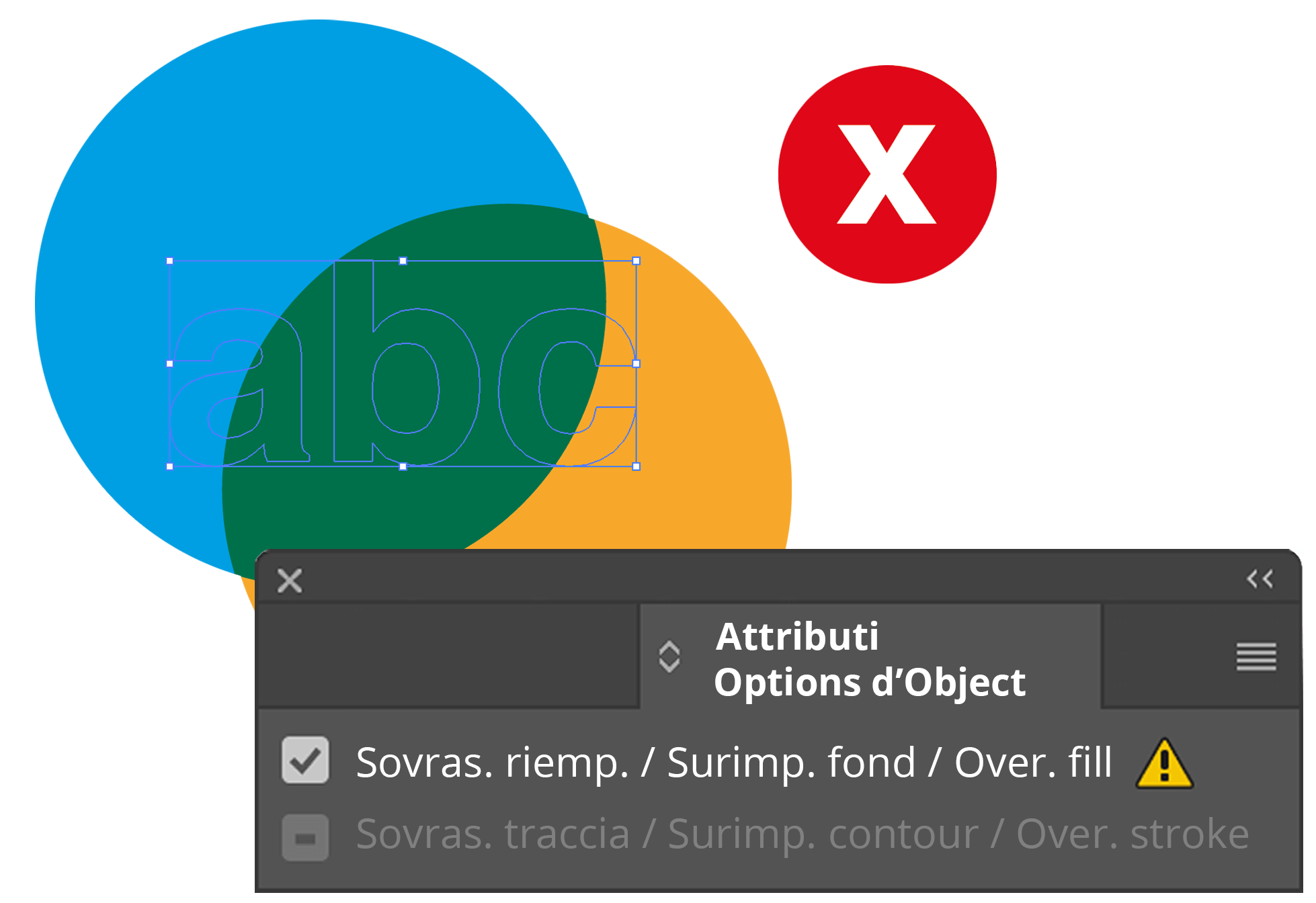
In order to avoid unexpected outcomes, always use the Overprint Preview mode in order to check that the objects set for overprint by mistake – especially, white elements or very light ones – will disappear during printing.
Getting around the world of cards has never been easier. Select the filter, compare them and choose yours!